Overview
This document will guide you through the process of installing the Easalytics HubSpot Sync application into your HubSpot account.
Prerequisites
You will need to have a HubSpot account already created and your HubSpot user account must be an Administrator.
Step 1
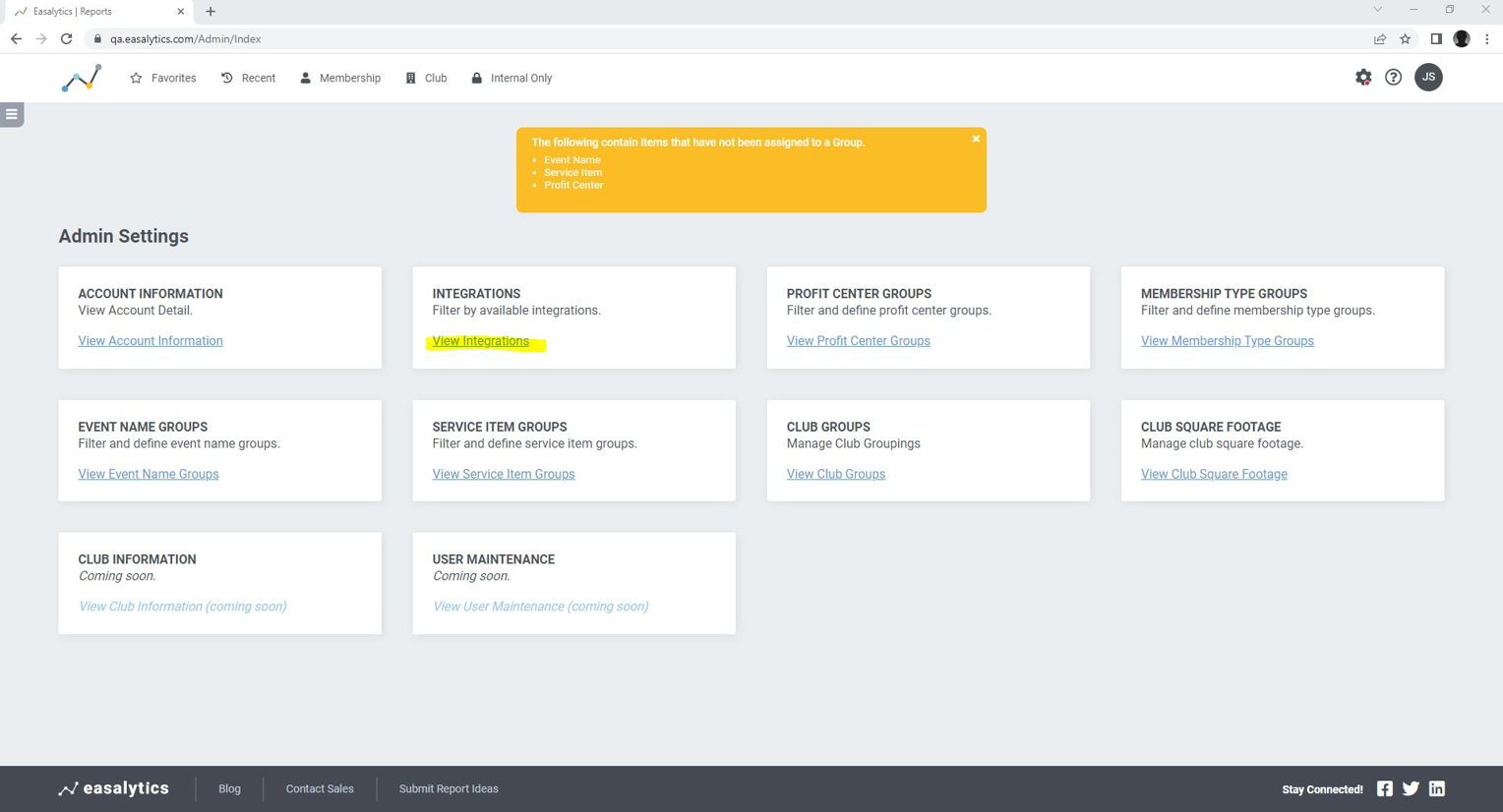
Log into Easalytics and enter the Administration section by clicking the “gear” in the upper right corner, once there, click the “View Integrations” link.
Step 2
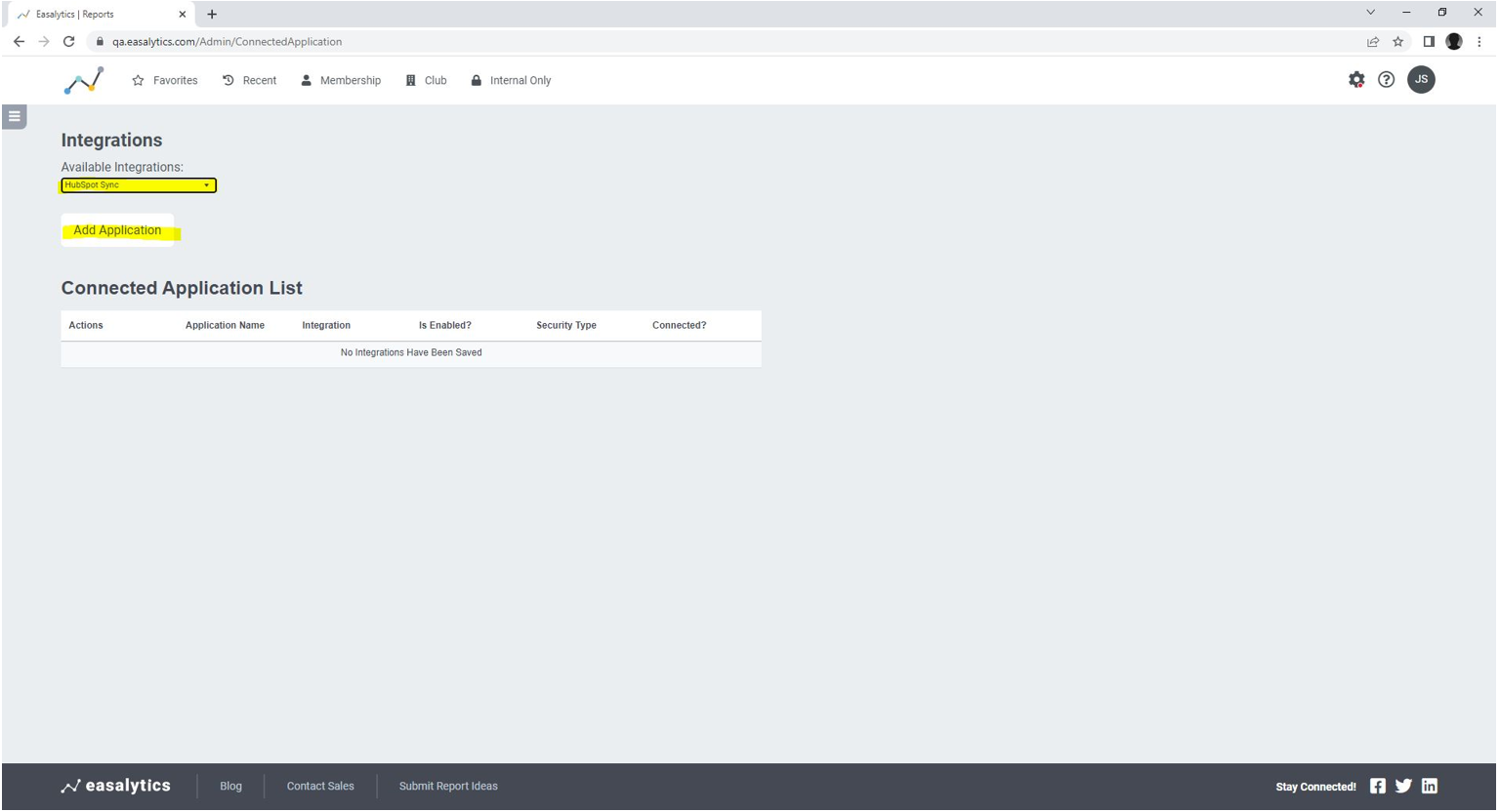
Add the “HubSpot Sync” integration. In the “Available Integrations” list, select “HubSpot Sync” and click “Add Application”
Step 3
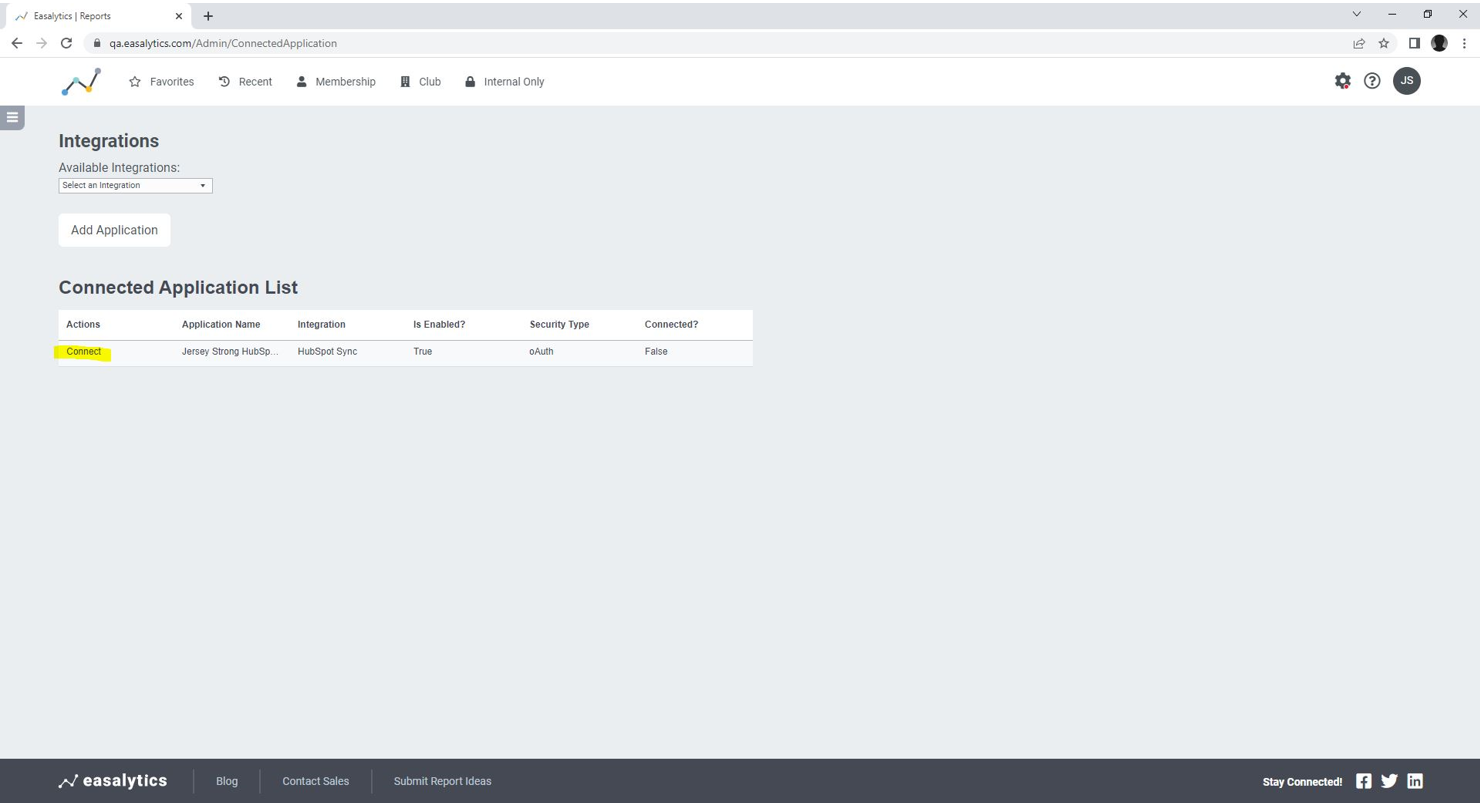
Connect the “HubSpot Sync” application to your HubSpot account. Once the integration has been added you will see an entry in the “Connected Application List” table, under “Actions”, select “Connect”
When you click “Connect” your browser will redirect to the HubSpot Login page (if you are not already logged into HubSpot in the same browser window).
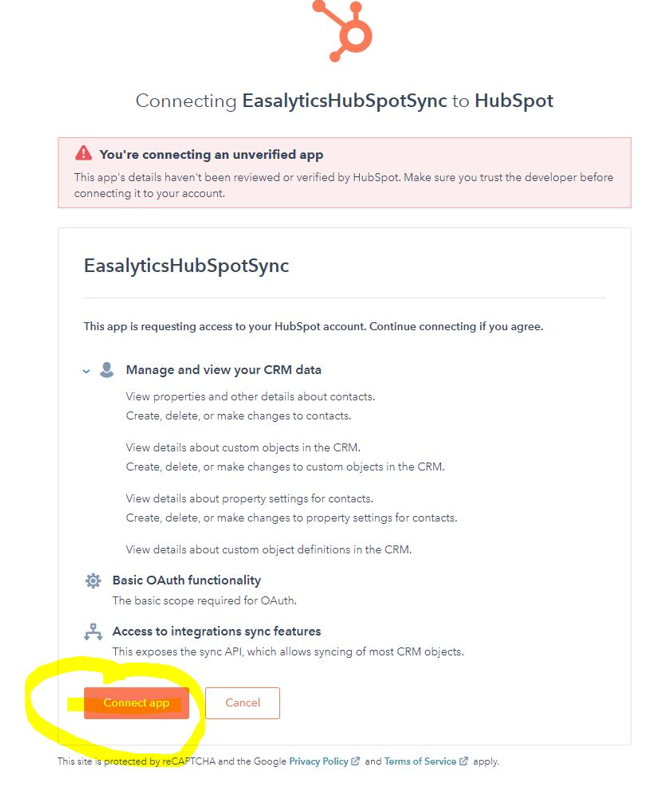
After logging into HubSpot you will be presented with a screen to select the HubSpot account this application should be connecting to. Once that selection is made, you will be presented with another screen asking you to confirm you would like to install the “EasalyticsHubSpotSync“ application, click “Connect app” to install.
Note: You will see a message stating “You’re connecting an unverified app”. This message occurs because it is not currently an application publicly available through the HubSpot App Marketplace.
Step 4
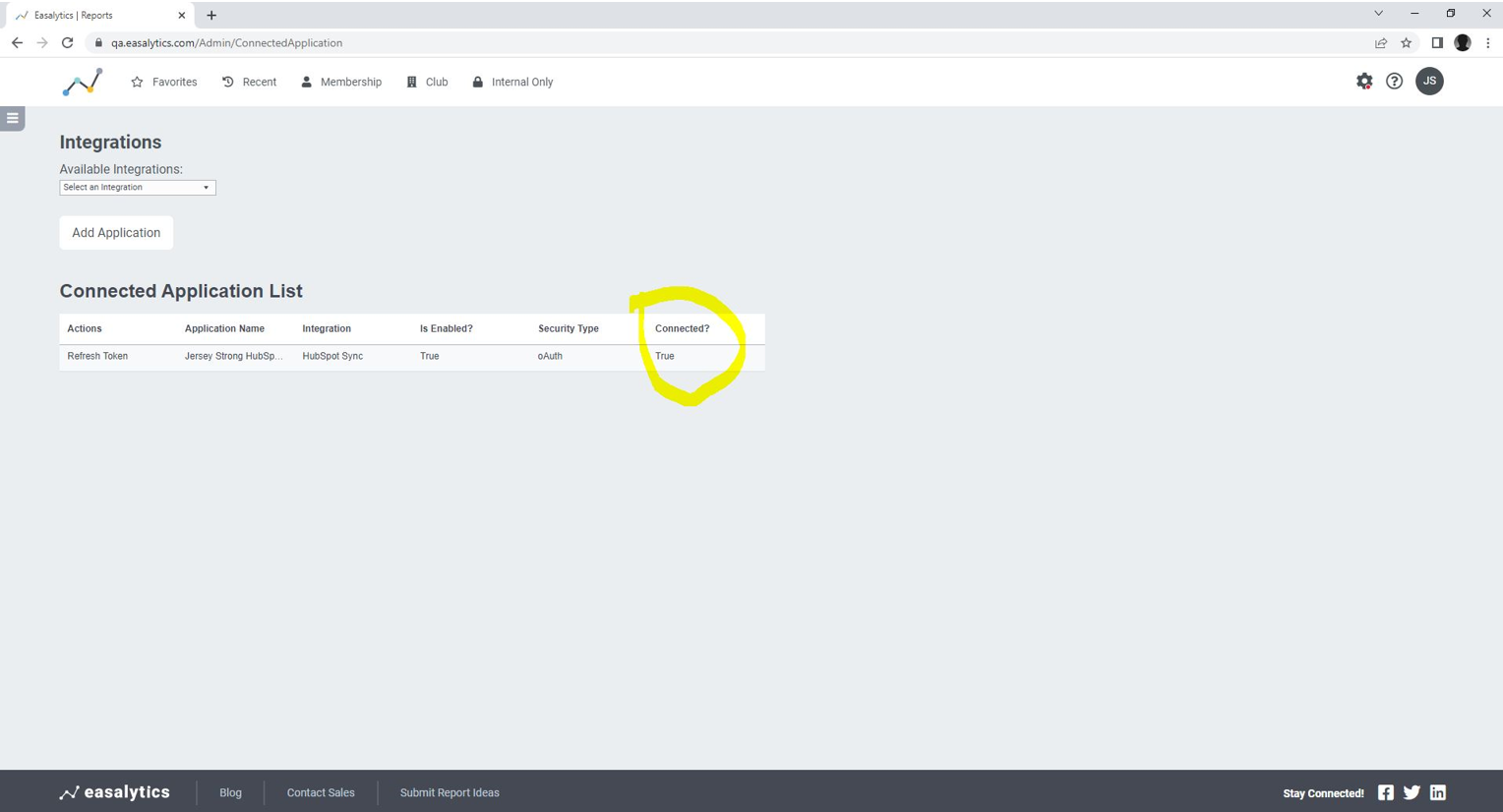
Confirm connection. Once you click “Connect App” you will be redirected back to the Easalytics Administration screen. Please note there may be a bit of a delay with the redirect and initially it may seem like it’s not doing anything. In the Easalytics Connected Application List the HubSpot Sync status should match what is shown below:
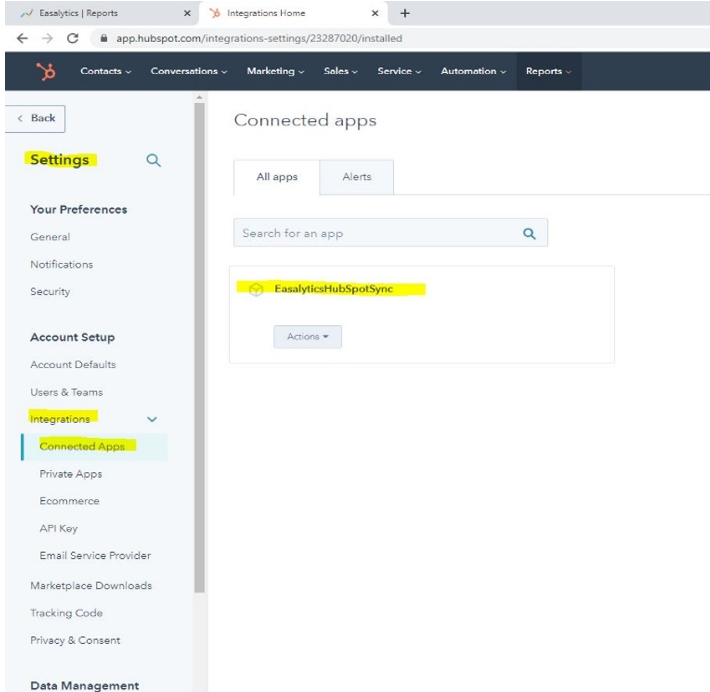
You can also confirm within HubSpot that the app was installed into your HubSpot account by navigating to your HubSpot accounts Administrative screen, under Account Setup->Integrations->Connected Apps, you should see the “EasalyticsHubSpotSync” application listed.