
What is a Saved Cohort?
When you save a cohort you save a point-in-time snapshot of data for the selected group of members so you can later see what has changed. This feature is idea to measure the impact marketing campaigns.
Using Easalytics Member List, you can filter down to just the right group, such as Freeze Members or male members over the age of 55 who have never purchased Personal Training. You can export the list to use in any of your upcoming marketing campaigns. And you can save the filtered list of members as a Cohort so you can easily come back and measure the changes to the group over time right in Easalytics
How to Save a Cohort
To Save a Cohort, first navigate to the Member List report page. From there, make the filters you would like, such as male members over the age of 55 who have never purchased Personal Training. Once your filters are set, in the upper right of the screen, click the save icon, and Save Cohort:
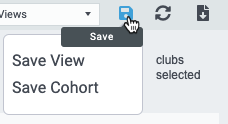
After naming and saving the Cohort, it will be available in the Saved Cohorts report page.
Analyzing a Saved Cohort
After you have executed your campaigns to this cohort of members, you can use the Saved Cohort feature to see differences in your members' behavior from when you saved the cohort until now.
By exporting the cohort to Excel and viewing the previously saved values next to the current values, such as is shown below, you can easily see changes in any metric:
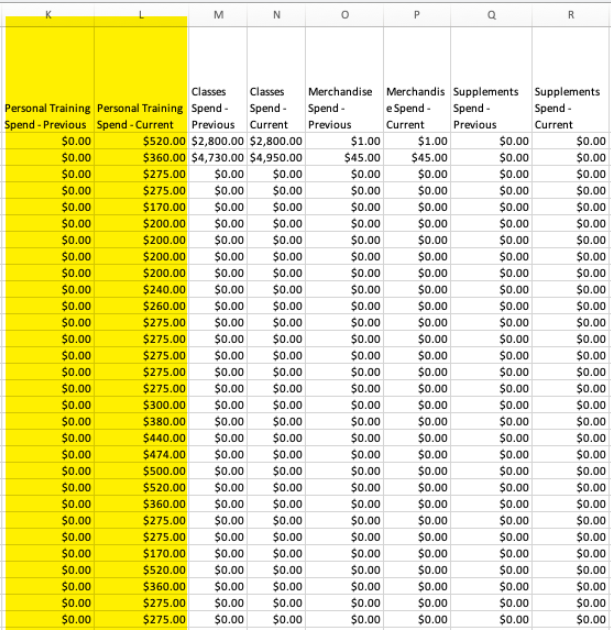
In addition to spend, you can use Saved Cohorts to track changes in any variable that is available in Member List, such as check-in metrics, membership type, attrition risk rating, etc.
To learn more, watch this Saved Cohort Video Tutorial.
Still have questions?
Contact support@easalytics.com anytime!