
Membership Type Groups are a feature in Easalytics dashboards that allows you to group your Memberships into higher level categories, which make reporting easier to read and understand.
Tables can't be imported directly. Please insert an image of your table which can be found here.
Throughout Easalytics dashboards you will have the ability to report on the Membership Type Group, or more granularly to the membership.
When your clubs are onboarded, the Easalytics team will make a first attempt at grouping your memberships for reporting. We encourage you to review your membership types, and make changes to meet your reporting needs.
Making updates to your Membership Type Groups is done by your Easalytics admin users.
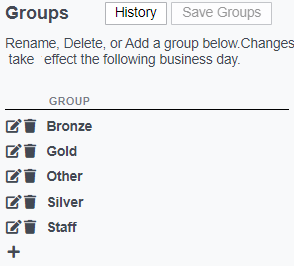
Using the Admin Page
Navigate to the Admin section using the Gear icon  in the top right of the Easalytics portal, when you're logged in. From the admin section, click on the Membership Type Grouping link. Note, only admin users have the ability to manage groupings.
On the right of the Membership Type Grouping admin page is a list of your Groups. These are the top level categories that will appear in reporting. In this section you can add, edit, or delete Membership Type Groups. Save your changes here before doing the next part.
On the left of the page is a list of your Membership Types from your Member Management System (MMS), along with a count of members we have assigned to that membership type, a field to map the item to the Group, and info about when the mapping was last changed. Here, you can change what Group a membership type is mapped to; then save your changes.
Note: All saved changes made on this screen will reflect in your reporting the following day.
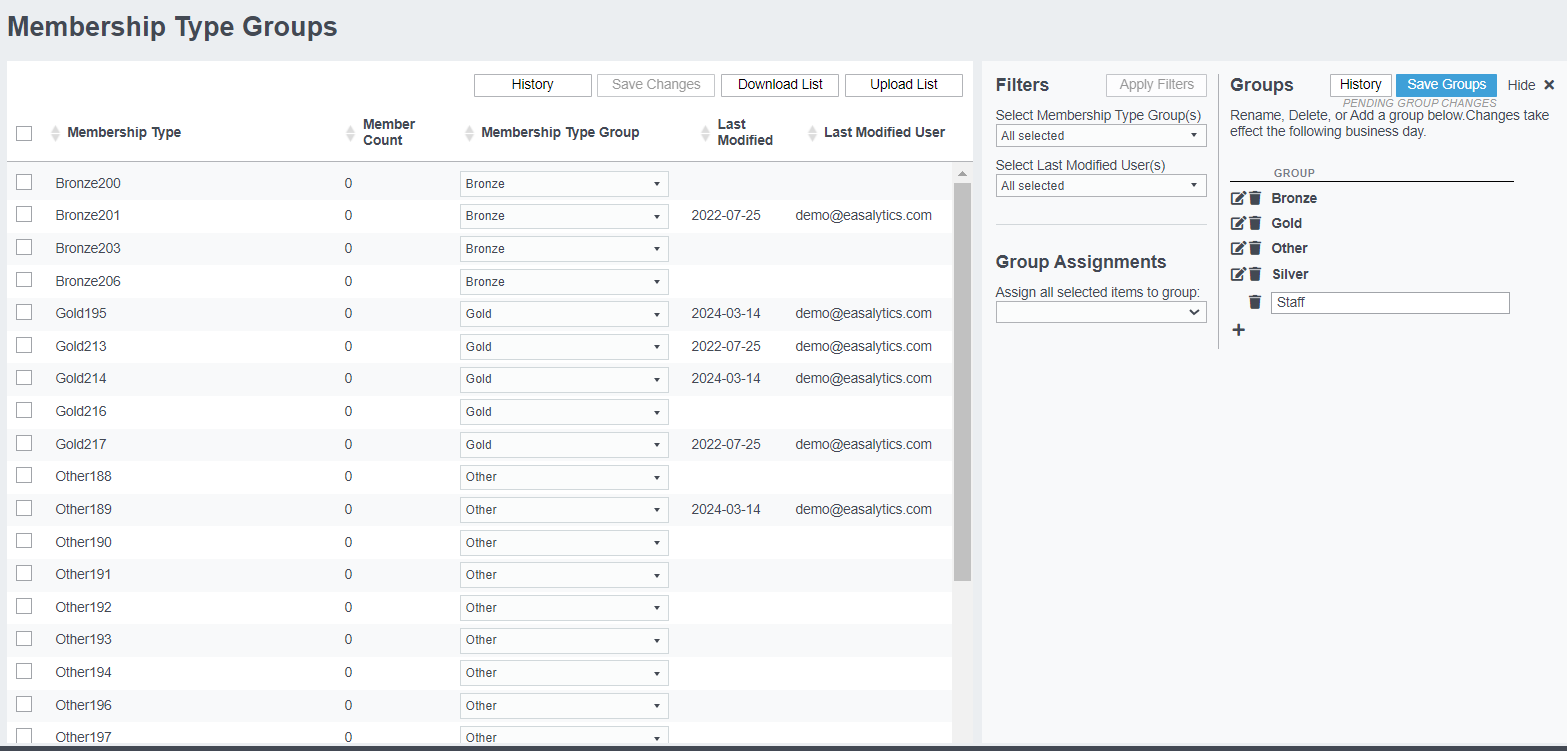
When defining your Membership Type Groups, consider how you want to report on new and existing members. One way we've seen clients use this is to create membership type groups for Silver Sneakers, Staff, Comp Membership, and things they sometimes want to exclude from reporting, particularly new member reporting.
Membership Type Groups in Reports
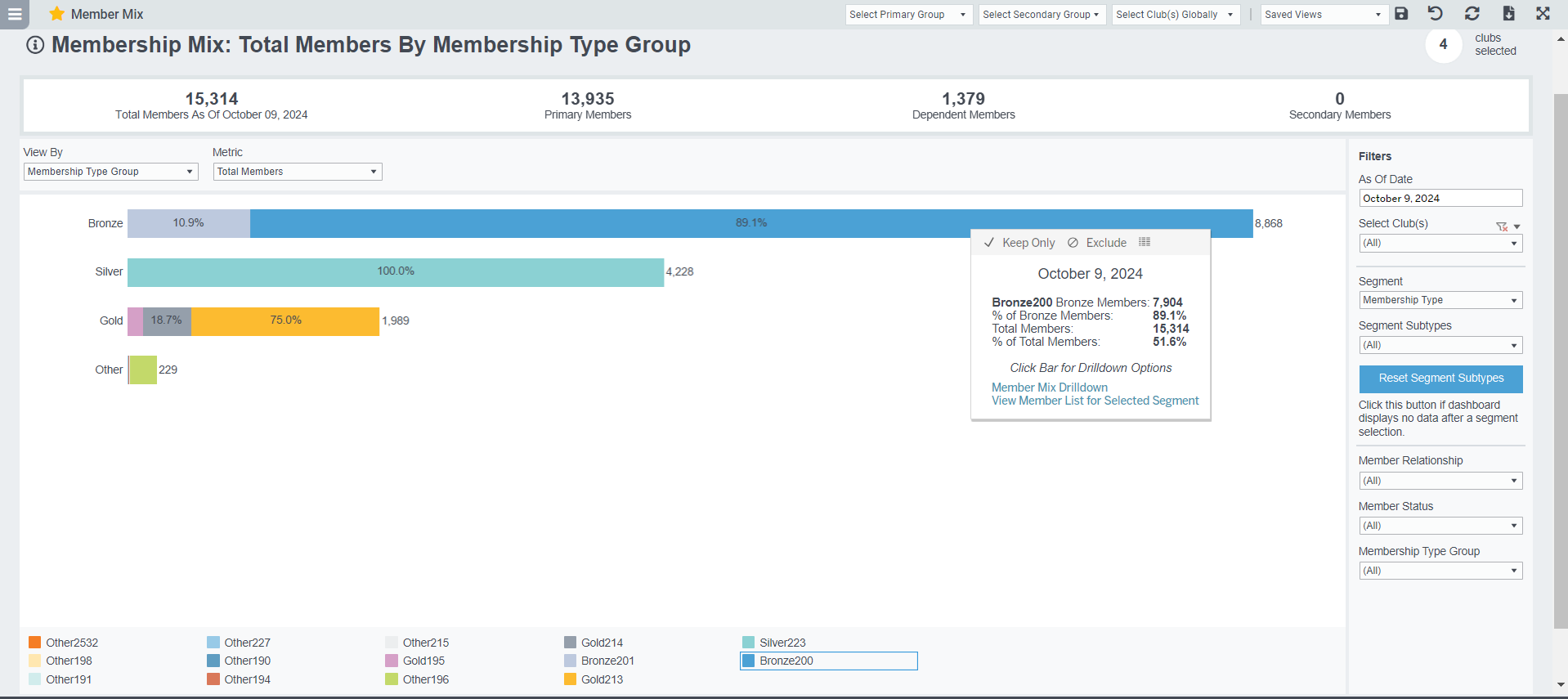
You will find Membership Type Groups in most reports. You can see member counts and comparisons in Member Mix, and trends in Membership Trends. You can see which Membership Type Groups are check-in, making purchases, and taking classes and PT throughout Easalytics reporting suite.
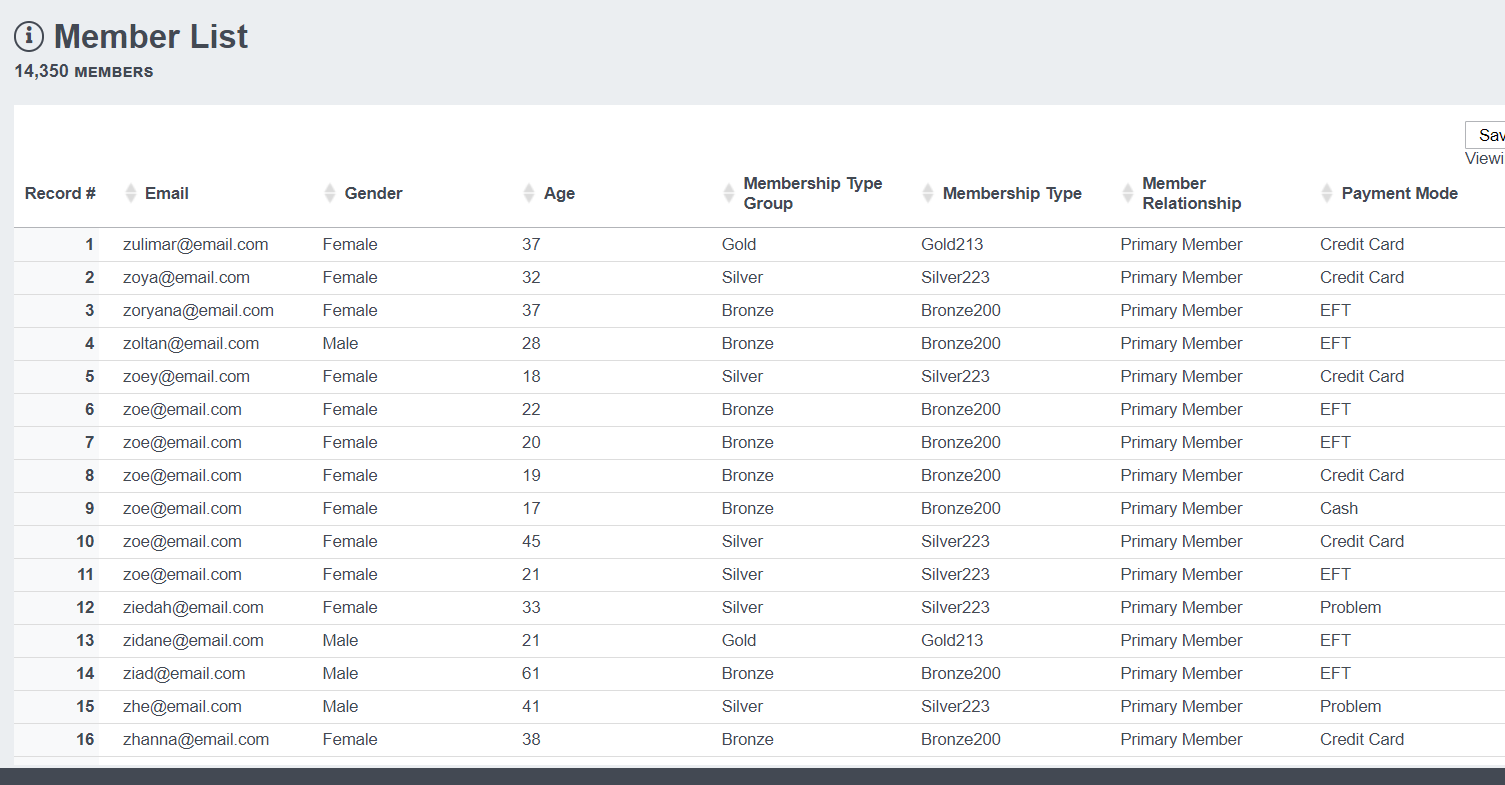
And in Member List, you can find every member with the Membership Type Group, membership type, and everything else you could want to know.
If you have more questions or feedback on this feature, don't hesitate to reach out to support@easalytics.com.